Adding interactivity
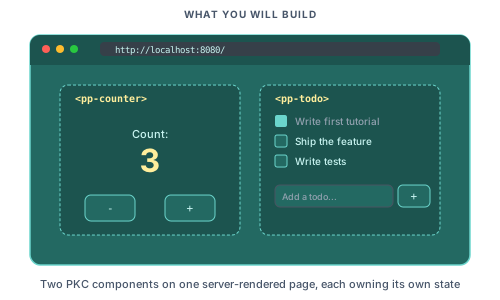
In this tutorial we build two reactive widgets. The first is a counter that increments on click. The second is a todo list with keyed loops and inline event handling. Both run entirely on the client.
Before starting, finish the Your first page tutorial. You should have a working Piko project with a dev server running.
Step 1: Create a counter component
Create components/pp-counter.pkc:
<template name="pp-counter">
    <div class="counter">
        <p>Count: {{ state.count }}</p>
        <button p-on:click="increment">+1</button>
    </div>
</template>

<script lang="ts">
    const state = {
        count: 0 as number,
    };

    function increment() {
        state.count++;
    }
</script>

<style>
    .counter {
        display: flex;
        gap: 1rem;
        align-items: center;
        padding: 1rem;
        border: 1px solid #e5e7eb;
        border-radius: 0.5rem;
    }
    button {
        padding: 0.5rem 1rem;
        background: #6F47EB;
        color: white;
        border: none;
        border-radius: 0.25rem;
        cursor: pointer;
    }
</style>
Step 2: Use the component on a page
Create pages/counter.pk:
<template>
    <piko:partial is="layout" :server.page_title="'Counter demo'">
        <h1>Counter demo</h1>
        <p>Click the button to increment the counter:</p>

        <pp-counter></pp-counter>

        <p>
            This entire page is rendered on the server, but the counter
            lives on the client.
        </p>
    </piko:partial>
</template>

<script type="application/x-go">
package main

import (
    "piko.sh/piko"
    layout "myapp/partials/layout.pk"
)

func Render(r *piko.RequestData, props piko.NoProps) (piko.NoResponse, piko.Metadata, error) {
    return piko.NoResponse{}, piko.Metadata{
        Title: "Counter demo",
    }, nil
}
</script>
Visit http://localhost:8080/counter and click the button. The "Count: 0" text changes to "Count: 1", "Count: 2", and so on. No network request fires.
For the PKC format, p-on:click, state, and template name see client components reference. For why PK and PKC are separate see about reactivity.
Step 3: Configure the component from the page
Update components/pp-counter.pkc to accept label and step from attributes:
<template name="pp-counter">
    <div class="counter">
        <p>{{ state.label }}: {{ state.count }}</p>
        <button p-on:click="increment">+{{ state.step }}</button>
    </div>
</template>

<script lang="ts">
    const state = {
        label: 'Count' as string,
        count: 0 as number,
        step: 1 as number,
    };

    function increment() {
        state.count += state.step;
    }
</script>
Pass values from the page:
<pp-counter label="Visitors" count="100" step="5"></pp-counter>
PKC initialises fields whose names match attributes on the tag from those attribute values. The type annotations on the state literal (as number, as string) drive the coercion from raw HTML attributes (which arrive as strings) to typed state values. See About reactivity for the underlying model.
Reload /counter. The counter now reads "Visitors: 100" and each click adds 5. For the full state and attribute model see client components reference.
Step 4: Build a todo list
Create components/pp-todo-list.pkc:
<template name="pp-todo-list">
    <div class="todo-list">
        <h2>{{ state.items.length }} items</h2>

        <form p-on:submit.prevent="add">
            <input type="text" p-model="state.draft" placeholder="What needs doing?" />
            <button type="submit">Add</button>
        </form>

        <ul>
            <li p-for="item in state.items" p-key="item.id">
                <input
                    type="checkbox"
                    :checked="item.done"
                    p-on:change="toggle(item.id)"
                />
                <span :class="item.done ? 'done' : ''">{{ item.text }}</span>
                <button p-on:click="remove(item.id)">Delete</button>
            </li>
        </ul>

        <p p-if="state.items.length == 0">No items yet. Add one above.</p>
    </div>
</template>

<script lang="ts">
    type Item = {
        id: number;
        text: string;
        done: boolean;
    };

    const state = {
        items: [] as Item[],
        draft: '' as string,
        nextId: 1 as number,
    };

    function add() {
        const text = state.draft.trim();
        if (text === '') {
            return;
        }
        state.items.push({ id: state.nextId, text, done: false });
        state.nextId++;
        state.draft = '';
    }

    function toggle(id: number) {
        const item = state.items.find(i => i.id === id);
        if (item) {
            item.done = !item.done;
        }
    }

    function remove(id: number) {
        state.items = state.items.filter(i => i.id !== id);
    }
</script>

<style>
    .done { text-decoration: line-through; opacity: 0.6; }
    form { display: flex; gap: 0.5rem; margin-bottom: 1rem; }
    input[type="text"] { flex: 1; padding: 0.5rem; }
    ul { list-style: none; padding: 0; }
    li { display: flex; gap: 0.5rem; align-items: center; padding: 0.25rem 0; }
</style>
Step 5: Add the todo list to a page
Create pages/todos.pk:
<template>
    <piko:partial is="layout" :server.page_title="'Todo list'">
        <h1>Todo list</h1>
        <p>A reactive todo list rendered entirely on the client.</p>

        <pp-todo-list></pp-todo-list>
    </piko:partial>
</template>

<script type="application/x-go">
package main

import (
    "piko.sh/piko"
    layout "myapp/partials/layout.pk"
)

func Render(r *piko.RequestData, props piko.NoProps) (piko.NoResponse, piko.Metadata, error) {
    return piko.NoResponse{}, piko.Metadata{Title: "Todo list"}, nil
}
</script>
Visit http://localhost:8080/todos. Type "buy milk" and press Enter. A new <li> appears above the "No items yet" message, which disappears once the list is non-empty. Tick the checkbox and the text gains a strikethrough. Click Delete and the item vanishes.
For p-for, p-key, p-model, and p-on:submit.prevent see directives reference.
Step 6: Seed the list with initial items
Declare initial rows in the state literal. Update components/pp-todo-list.pkc:
const state = {
    items: [
        { id: 1, text: 'Read the tutorial', done: true },
        { id: 2, text: 'Build something', done: false },
    ] as Item[],
    draft: '' as string,
    nextId: 100 as number,
};
Reload /todos. The two seeded items appear on first paint. Adding, ticking, and deleting work as before.
For how state hydration interacts with rendering see about reactivity.
Where to next
- Next tutorial: Server actions and forms introduces the server side and shows how a PKC component saves state back to the server.
- Reference: Client components reference for the full PKC file format, directives reference for
p-on,p-if,p-for,p-key,p-model. - Explanation: About reactivity covers the rendering and hydration model.
- How-to: Scope and bridge component CSS and toggle element visibility.
- Runnable source:
examples/scenarios/003_reactive_counter/andexamples/scenarios/007_todo_app/.